Swipe to delete photos: clear your gallery without losing anything
Swipe to delete photos means going through your gallery one picture at a time: swipe left to bin a photo, swipe right to keep it. It is faster than ticking boxes and safe as long as deleted photos go to the trash first, which on Android 11 and later keeps them for 30 days, and you check your cloud backup before you start.
Updated:
How does swipe to delete photos work?
Swipe apps show one photo at a time, full size, so you judge each picture on its own instead of as a thumbnail. One gesture decides: left means delete, right means keep. Because there is nothing to select or confirm per photo, you get through hundreds of pictures in a few minutes.
The method works best for the photos no algorithm can judge for you: the blurry shot of a nice evening, the receipt you photographed once, the ten pictures of the same view. For exact copies and long bursts, a grouped view is faster, because you decide once per group instead of once per photo.
- Start with one month or one album, not the whole gallery, so you can stop at a natural break.
- Swipe quickly; if you hesitate for more than a second, keep the photo and move on.
- At the end, look through the trash once before you empty it.
Is a swipe to delete photos app safe?
It is safe when two things are true: the app never deletes anything on its own, and deleted photos go to the system trash rather than straight to permanent deletion. On Android 11 and later, an app that is not your gallery has to ask through a system dialog before it can move your photos to the trash, so nothing disappears unnoticed.
Also check where your photos are processed. A cleaner that scans on the phone does not need to upload your pictures; one that needs an account or an upload to find duplicates sends your private photos to a server.
- Does the app move photos to the system trash, so you can restore them for 30 days?
- Can you see every photo before it is removed?
- Does it work without an account and without uploading your photos?
- Are price and renewal shown in full before you subscribe, and can you cancel in Google Play?
Where do deleted photos go on Android?
Deleted photos go to the trash first. Google states 30 days for Google Photos, both for backed-up items and for items deleted without backup on Android 11 and up; after that they are permanently deleted. Android itself also keeps a trash for media files whose entries typically expire after 30 days.
The catch: photos in the trash still take up space. Your storage only grows once the trash is emptied, either by you or automatically after 30 days. Empty it only after a final look, because after that you usually need a backup to get a photo back.
How to delete photos from your phone but keep them in Google Photos
With backup turned on, deleting a photo in Google Photos also removes it from your other devices with backup turned on, according to Google’s help pages. To clear space on the phone only, use “Free up space on this device” in Google Photos: it removes the local copies of photos that are already safely backed up and leaves the cloud copies alone.
Check first that the backup has actually finished. The same rule applies to other sync services: syncing means a deletion travels in both directions, while a one-off copy to a computer or drive stays independent of your phone.
| Situation | Phone | Cloud |
|---|---|---|
| Backup on, delete in Google Photos | gone after trash | gone after trash |
| Backup on, “Free up space on this device” | local copy removed | kept |
| Backup off, delete on Android 11+ | in trash for 30 days | not affected |
Duplicates, bursts and screenshots: what to delete first
Exact duplicates are the same file saved twice, for example once from a chat and once as a download; one copy can go without any loss. Burst or look-alike shots are several photos of the same moment; keep the sharpest one and clear the rest. Screenshots are the third big group, but two chat screenshots can look identical and say completely different things, so they should never be treated as duplicates automatically.
A quick sum shows where the space is: a burst of 5 shots at 4 MB each takes 20 MB, and keeping the best frees 16 MB. Forty such bursts add up to 640 MB, more than hundreds of screenshots. Large videos free the most per deletion, so back up the ones that matter and look at the rest one by one.
- Start with exact duplicates and bursts, where the risk is lowest.
- Sort screenshots by date and clear old confirmations, directions and codes.
- Review large videos individually; copy family videos to a computer first.
- Empty the trash last.

How Cull helps you swipe to delete photos
Cull is a photo cleaner for Android that combines swiping with grouped finds: it scans the phone, shows how much space each group would free and lets you swipe through the rest. It never deletes on its own; everything you clear moves to the Android bin, where it can be restored for 30 days. No account is needed and your photos are not uploaded.
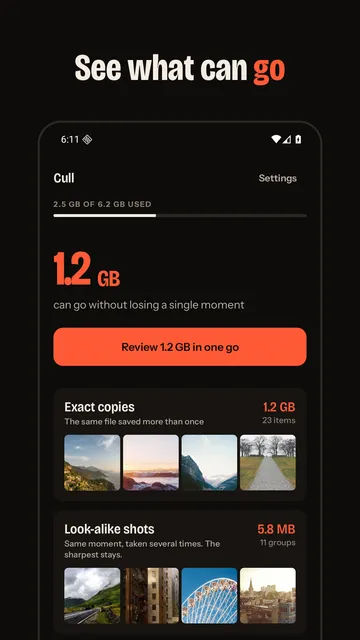
- Home screen with a total (“1.2 GB can go”) and the groups exact copies, look-alike shots, screenshots and large videos over 50 MB.
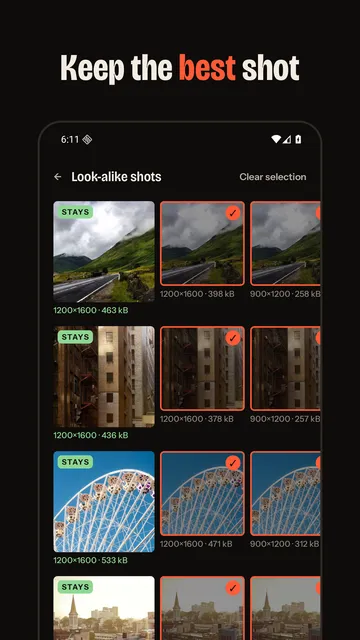
- Look-alike shots: Cull marks the one with the highest resolution as “Stays”; the others are preselected and can be unticked.
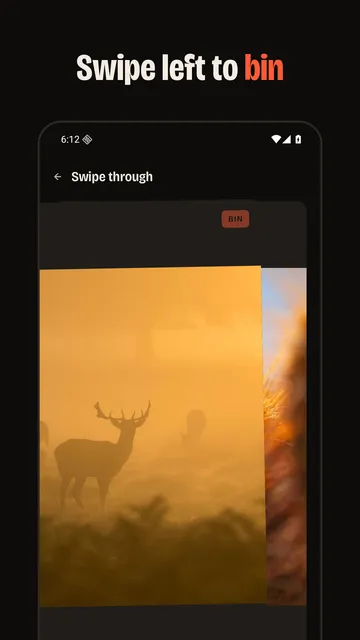
- Swipe through your gallery one photo at a time: left to bin, right to keep.
- “Review in one go” gathers all finds in one list.
- Strict matching: only photos whose structure and colours match count as look-alikes, and screenshots are never grouped.
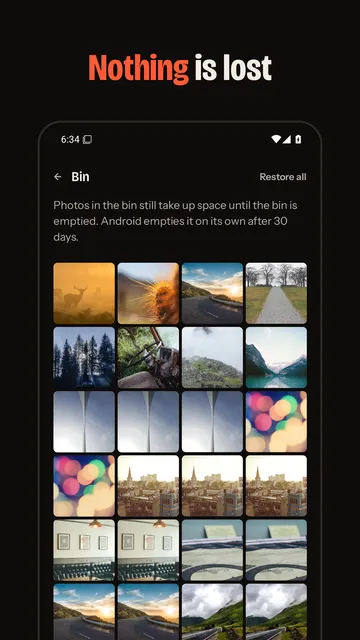
- A bin view shows the space still held there, restores everything or empties it.
- Optional weekly check that only notifies you once there is at least 100 MB to clear.
What the app cannot do
Cull only clears storage on this Android phone (Android 11 or later), not your cloud backup, which you manage in its own app. Because look-alike matching is strict on purpose, it would rather miss a pair than show a wrong one, and it finds large videos but does not compress them.
Price
Free with ads: scanning, viewing the finds and clearing your first 10 photos or 100 MB cost nothing; for everything beyond that, Cull Pro is a monthly ($2.79 in the US) or yearly ($18.99 in the US) subscription that you can cancel any time in Google Play. We build this app ourselves; on Google Play it is listed under the developer name InfinityAkhi.
Screenshots
Related calculators on ToolboxDay
Frequently asked questions
Why do I not have more space after deleting photos?
Deleted photos sit in the trash for up to 30 days and still take up space there. Your storage is only freed once the trash is emptied.
Will deleting photos on my phone delete them from Google Photos?
If you delete them in Google Photos with backup turned on, yes, they are removed from your other backed-up devices too. “Free up space on this device” removes only the phone copies of backed-up photos.
Can I get deleted photos back?
Yes, from the trash within 30 days. Once the trash is emptied, you usually need an existing backup.
Does Cull delete photos automatically?
No. Cull suggests and marks photos, but nothing is removed until you confirm, and even then everything goes to the Android bin first.
Sources
More guides
- The Y2K Camera Look: Where It Comes From and How to Shoot It
- Recurring payments: find them, add them up, cancel what you don’t use
- Lean angle motorcycle guide: how it is measured and what the number means
- Constellation finder: how to find constellations in the night sky
- Oil change reminder: how to time it and never miss it
- Garden layout planner: how to lay out a raised bed step by step
- Our apps