Doomscrolling blocker: how to stop the endless scroll
A doomscrolling blocker locks the apps you lose the most time in and puts a hurdle in front of every launch: a wait, a daily limit or a small task. It is most effective combined with phone-free times, notifications switched off and a plan for what you will do instead.
Updated:
What is doomscrolling, and why is it so hard to stop?
Doomscrolling means scrolling on and on through feeds, short videos or news, often bad news, long after you meant to stop. The word combines “doom” and “scrolling”.
Stopping is hard because feeds have no natural end: there is no last page that tells you to put the phone down. On top of that, opening an app costs a single tap. That is exactly where blockers step in. They make getting in a little more expensive again and create a moment in which you decide on purpose.
Harvard Health reports on a study of 800 adults that links doomscrolling with higher levels of existential anxiety. How much that applies to you is individual; if your phone use feels like a burden, talking to a professional can help.
How to stop doomscrolling: what actually helps day to day?
Several small hurdles work better than one big resolution. Willpower rarely holds out on the sofa at night, while a setting you make once works every day without effort.
- Measure honestly: open Digital Wellbeing in your Android settings and note the three apps that take the most time and how often you unlock your phone.
- Turn off notifications for those apps. Every push notification is an invitation to keep scrolling.
- Move the apps off your home screen into a folder on the second page, so your thumb does not hit them in passing.
- Set phone-free times, for example the first half hour after waking up and the last one before sleep; charge your phone outside the bedroom.
- Put a hurdle in front of the problem apps: an app timer, Focus mode or a blocker that asks for a small task first.
- Decide on a replacement: what will you do instead when you reach for the phone? A glass of water, ten squats, a chapter of a book.
How to limit screen time on Android for free
Android already ships three tools in Digital Wellbeing. App timers cap the daily time per app; once it is used up the app is paused, and the timer resets at midnight. Focus mode pauses chosen apps and their notifications while it is on. Bedtime mode silences the phone and switches it to grayscale in the evening.
The weakness of these tools is that two taps turn them off again, and that is exactly what a tired thumb does at night. Blockers that ask for something in return (waiting, typing, moving) make getting around them a deliberate effort.
| Approach | How it works | Typical weakness |
|---|---|---|
| App timer (Android) | Daily limit per app, paused until midnight | Easy to delete the timer |
| Focus mode (Android) | Chosen apps paused completely | One tap turns it off |
| Grayscale / Bedtime mode | Feeds look less appealing | Only helps at set times |
| Wait-time blocker | A few seconds of pause before opening | You get used to waiting |
| Exercise blocker | Unlock only in exchange for reps | Needs space and a camera |
Push-ups to unlock apps: what does an hour of scrolling cost?
An exercise blocker trades time for reps: a fixed number of push-ups or squats buys a fixed number of minutes. Work out your own exchange rate once, and you will see what an evening in the feed really costs.
Example at 10 reps for 15 minutes: one hour of scrolling is 4 unlocks, so 40 reps. Two hours a day add up to 80 reps, or 560 a week. If you want to scroll less, lower the minutes or raise the reps; if you are new to push-ups, start with squats or a small number.
According to WHO, any amount of physical activity is better than none, sedentary time should be limited, and muscle strengthening benefits everyone. An exercise blocker is still not a training plan: it simply puts a small task between you and the feed.
- Clean form matters more than the number: 5 full push-ups beat 10 half ones.
- If you have pain, an injury or a medical condition, check with a doctor which exercise suits you.
| Scrolling per day | Unlocks | Reps per day | Per week |
|---|---|---|---|
| 30 minutes | 2 | 20 | 140 |
| 1 hour | 4 | 40 | 280 |
| 2 hours | 8 | 80 | 560 |
| 3 hours | 12 | 120 | 840 |
A quick checklist for your first week
Treat the change as a seven-day experiment. Write down your screen time from Digital Wellbeing on day one and compare at the end of the week. That shows you whether the hurdle works or needs adjusting.
- Day 1: note screen time and unlocks, pick your three biggest time sinks.
- Day 1: notifications off for those apps, apps off the home screen.
- Day 2: set up a hurdle (timer, Focus mode or a blocker).
- Every day: phone-free first and last half hour.
- Day 7: compare screen time; if the hurdle is too easy, lower the minutes per unlock.

How Pushgate helps against doomscrolling
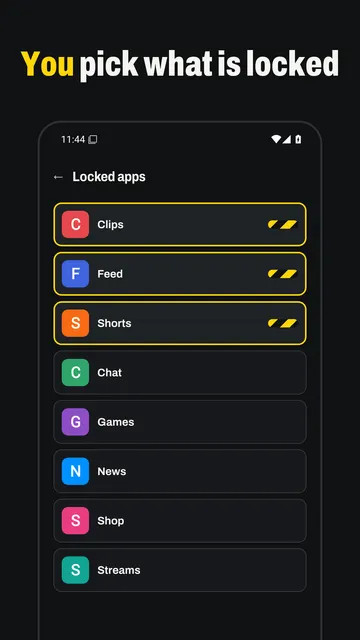
Pushgate is a doomscrolling blocker for Android that puts the exercise hurdle above into practice: you pick the apps to lock, and to get through the gate you pay in push-ups or squats in front of the camera. No account needed.
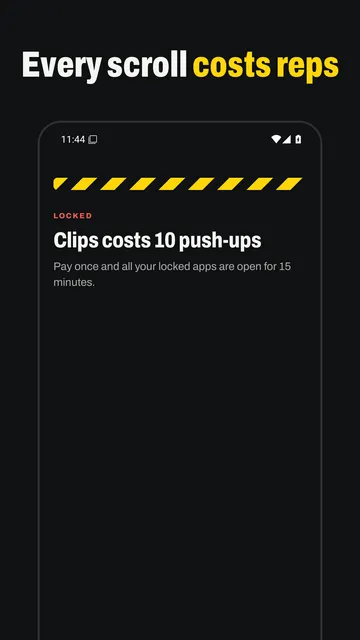
- Open a locked app and the gate comes down, for example “Clips costs 10 push-ups”. Pay once and all your locked apps are open for the minutes you earned.
- The default is 10 reps for 15 minutes. Then the gate closes again, even in the middle of a scroll.
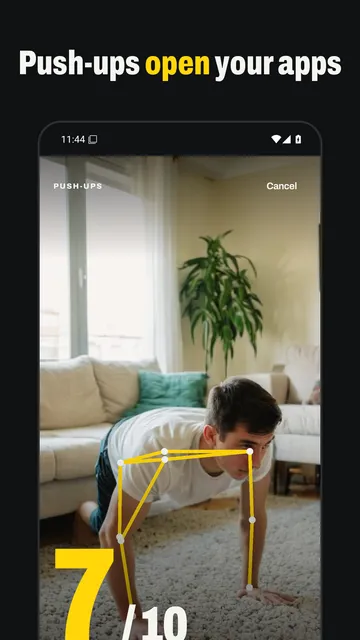
- The camera only counts full reps: down, deep enough and back up. Every rep beeps, so you never have to look at the screen.
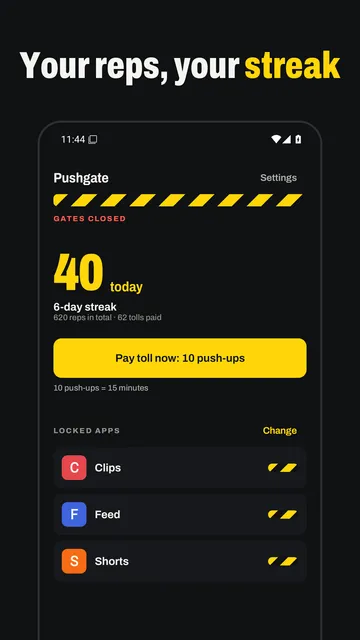
- The home screen shows today’s reps, your streak in days, total reps and how many tolls you have paid.
- According to the store listing, camera pictures are analysed on your phone and are never saved or uploaded.
What the app cannot do
Pushgate needs the Android Accessibility service to notice which app comes to the front; without that permission there is no lock. Anyone who revokes the permission or uninstalls the app is free again, so Pushgate makes scrolling harder rather than impossible. Counting uses the camera, so you need some space and light; the app is available for Android only.
Price
One locked app with push-ups is free. Pushgate Pro, with unlimited apps, squats and your own toll (reps and minutes), is a monthly or yearly subscription, in the US currently $3.79 a month or $23.99 a year; the price is shown in the app before it asks for any permission. We build this app ourselves; on Google Play it is listed under the developer name InfinityAkhi.
Get it on Google Play: Pushgate
Screenshots
Related calculators on ToolboxDay
Frequently asked questions
Can I stop doomscrolling without an app?
Yes. Turning off notifications, moving apps off the home screen, phone-free times and the app timers in Digital Wellbeing already help without anything extra. A blocker makes sense when you keep switching those settings off yourself.
How many minutes should one unlock give me?
Work backwards from the screen time you want. If you want at most one hour a day in feeds, 15 minutes per unlock gives you four rounds. If that feels too easy, lower the minutes.
Does Pushgate read what is on my screen?
According to its Play Store listing, Pushgate uses the Accessibility service only to notice which app comes to the front. The service does not read screen content or what you type.
What is included for free?
For free you can lock one app and unlock it with push-ups. More apps, squats and your own toll are part of Pushgate Pro.
Sources
More guides
- Winter arc challenge: set your rules and keep them until December 31
- Push-up alarm clock: how to wake up when you sleep through every alarm
- Neck exercises for a stiff neck: a gentle 3-minute routine
- Recurring payments: find them, add them up, cancel what you don’t use
- Lean angle motorcycle guide: how it is measured and what the number means
- Constellation finder: how to find constellations in the night sky
- Our apps