Desktop pet for phone: a tiny pet that lives on your screen
A desktop pet for phone is a small animated pet that lives on your screen like the classic PC desktop pets: it walks over your apps, climbs the edges and reacts when you touch it. On Android this works through the “display over other apps” permission; iPhones do not allow apps to draw over other apps.
Updated:
What is a desktop pet, and can you get one on your phone?
Desktop pets date back to the 1990s: programs like eSheep, the Neko cat and later Shimeji figures ran on Windows, walking across the desktop, climbing window edges and letting you toss them around with the mouse. Virtual pets such as the Tamagotchi are close relatives, with more focus on feeding and care.
On a phone the idea only works if an app may draw on top of other apps. Android allows this with a dedicated permission that you have to grant yourself. iOS has no such permission for third-party apps, so pet apps there stay inside their own window or a widget.
| PC (Windows, Mac) | Android | iPhone | |
|---|---|---|---|
| Walks over other apps | yes | yes, with overlay permission | no |
| Controls | mouse | finger: tap, hold, toss | only inside the app or widget |
| Keeps running in the background | yes | yes, with an ongoing notification | limited |
How to get a desktop pet on Android: allowing “display over other apps”
The permission is technically called SYSTEM_ALERT_WINDOW and is one of Android’s specially protected permissions: an app cannot get it silently, you switch it on yourself. Trustworthy apps take you straight to the right settings page.
Menu names vary a little by manufacturer, but the route is almost always similar:
- Samsung: Settings → Apps → three dots → Special access → Appear on top.
- Xiaomi/Redmi: Settings → Apps → Permissions → Other permissions or “Display pop-up windows”.
- Open Settings and tap Apps.
- Go to Special app access (on some phones behind the three-dot menu or under Advanced).
- Tap Display over other apps (sometimes Appear on top).
- Pick the pet app, switch the toggle on and return to the app.
Are screen pets safe?
The overlay permission is powerful, because it lets an app place things on top of other apps. Scammers use it to lay fake buttons over real ones. Only grant it to apps that clearly just draw, and check which other permissions an app asks for.
Far more sensitive than overlays is an accessibility service: it lets an app read what is on screen and trigger input. A desktop pet does not need that. If a pet app asks for accessibility access, be careful.
- Review permissions any time: Settings → Apps → pick the app → Permissions.
- An overlay should be easy to switch off or make see-through from its notification, so it never gets in your way.
- Android already hides many third-party overlays on sensitive screens such as some banking or password prompts.
Does a desktop pet drain your phone battery?
An animated pet is redrawn many times per second. How much power that costs depends mostly on three things: the frame rate, the number of pets, and whether the app truly pauses while the screen is off.
Rule of thumb: 15 to 30 frames per second are plenty for pixel figures, 60 only looks smoother during fast throws. A pet that sleeps or sits does not need constant redrawing. And the screen itself remains the biggest consumer, whether or not a pet walks across it.
- Cap the frame rate in the app if it lets you.
- Only run as many pets at once as you actually want to see.
- Check Settings → Battery → Battery usage to see what the app really uses.
- Keep battery saver on when you need it: it also slows overlay apps that do not hold back.
How to make a desktop pet from a photo of your own pet
To see your own dog or cat walking on your screen, the animal has to be cut out of the photo. The cleaner it stands out from the background, the better that works.
- A calm, plain background such as a light wall, a floor or a sheet.
- Good contrast: a dark pet on a light background or the other way round.
- The whole animal in frame, shot from the side, nothing cropped.
- No objects, leashes or hands covering the animal.
- Drawings on white paper usually work very well too.
How Pebbit works as a desktop pet for your phone
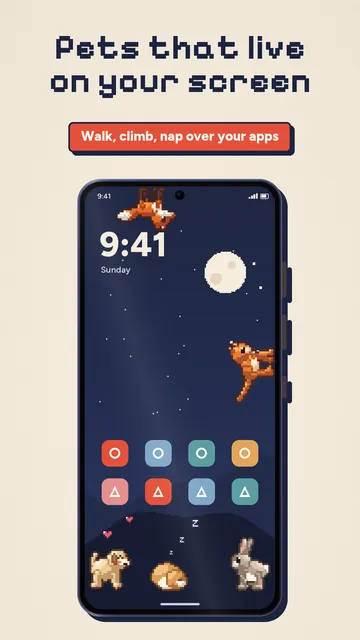
Pebbit is a desktop pet for Android: hand-drawn pixel pets walk over your apps, climb up the edges, hang from the top and take naps. It only uses the overlay permission and no accessibility service, and it cannot see what is on your screen.
- Pick a pet, allow “display over other apps”, and it starts walking, no sign-up needed.
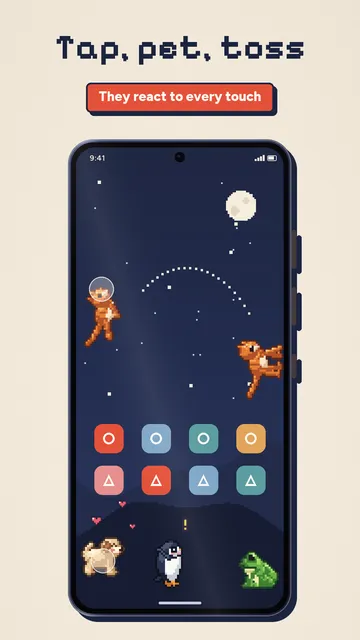
- Tap to make it jump, double tap for hearts, hold to pet it; pick it up by the scruff and toss it across the screen.
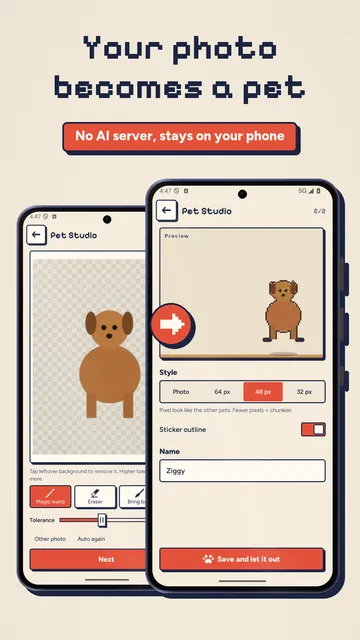
- Your own photo as a pet: the figure is cut out right on your phone without uploading, in a sticker or pixel look.
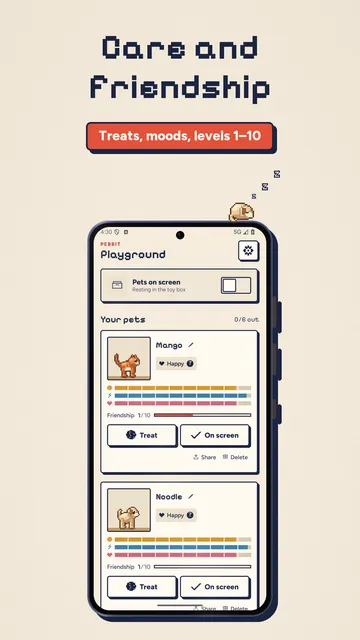
- Care without chores: tummy, energy and joy, treats from the notification, friendship levels 1 to 10.
- Kind to your battery: 15, 30 or 60 fps, full pause while the screen is off, ghost mode (see-through, taps go to the app below) and one-tap stop.
- Adjust size, speed and behaviours such as climbing walls, walking on the ceiling and naps.
What the app cannot do
Pebbit is Android only, because iOS does not allow overlays on top of other apps. Cutting out a photo works less well on busy backgrounds and may need touch-up with the eraser and tolerance slider; the pets are companions to watch and play with, not a game with goals.
Price
Three animals (cat, pup, hamster), two pets at once and one photo pet are free; Pebbit Pro with all 8 pets, up to 6 at once and unlimited photo pets costs $3.79 a month or $23.99 a year in the US. We build this app ourselves; on Google Play it is listed under the developer name InfinityAkhi.
Screenshots
Frequently asked questions
Is there a desktop pet for iPhone?
Not one that walks over other apps. iOS does not let apps draw on top of other apps, so pet apps stay in their own window or a widget.
Why does a screen pet need the overlay permission?
Only with “display over other apps” may an app draw on top of other apps. Without it, the pet would only be visible inside its own app.
Will the pet get in the way when I tap other apps?
A small pet only covers its own area. In Pebbit, ghost mode makes pets see-through so taps go to the app below, and you can also hide them for 10 minutes.
Are my photos uploaded?
Not with Pebbit: the cut-out runs on your phone without an AI server. With any app, it is worth checking the privacy policy to see where images go.
Sources
More guides
- Cat logic puzzle: rules and tips for placing every cat
- Dumpling squishy: what to know before you squish, buy or collect
- Recurring payments: find them, add them up, cancel what you don’t use
- Lean angle motorcycle guide: how it is measured and what the number means
- Constellation finder: how to find constellations in the night sky
- Oil change reminder: how to time it and never miss it
- Our apps